How to Setup Grading: Scales

OVERVIEW
Scales
Are used to evaluate or rate a student’s performance. Administrators can create standard scales that are available across the entire site, while teachers can create custom scales for use within their own courses. Alternatively, grade points or no grade can be used instead of scales.
Scales can be applied in activities such as Forums, Glossaries, and Assignments to rate or grade student participation and submissions.
How to Add a New Scale
Step 1: On your LMS System, go to Site Administration → Grades → Scales
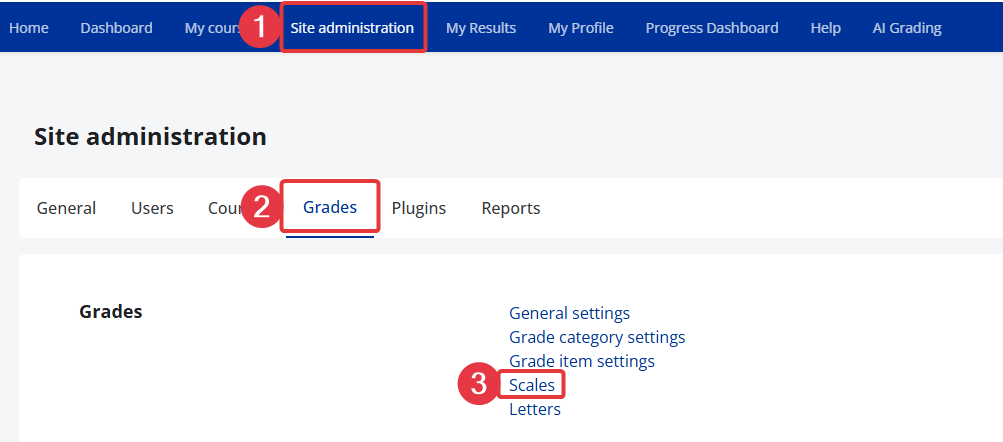
Step 2: Click the Add a new scale button
Step 3: Add the necessary details, once done make sure to click on the Save changes button
Name | Name of the scale |
| Standard Scale (Toggle) | 'Standard' scale is a scale which can be applied to every course in the LMS. Only those with site permissions such as LMS Admin can make a new scale 'standard'. A regular teacher can only create a scale for their own course. |
Scale | Grading option where student performance is assessed using a set of ordered values (words or phrases) rather than numerical scores. These values represent levels of achievement or quality. When creating scales, always order them from lowest to highest, this ensures the LMS system correctly determines which values count as passing. |
Description | This is where you can add definition or other relevant notes to determine the use of the scale you've added |
How to apply the Scale Grading method in an activity
Step 1: Go the Activity where you would want to implement the Grading: Scales (Assignment activity was used for this example); Go to Settings.
Step 2: From the settings page, hover your way through the Grade section and choose Scale as the Grade Type then choose the desired Scale that you would want to apply on this activity ("Sample Scale" was used for this example).
What is the Grade to Pass for the scale
When a grading scale is used (instead of numeric points), LMS system converts each item in the scale into an internal numeric position. The Grade to pass setting tells the system which item in that scale is the lowest acceptable passing level.

When creating scales, always order them from lowest to highest This ensures the LMS system correctly determines which values count as passing.
If the order of the scale is reversed (e.g., highest to lowest), it may result in the incorrect display of grades when viewing the student’s grader report. It will also affect the calculation and overall outcome of the student’s grade, as the system interprets results based on the defined sequence of the scale.
If your scale is: Poor, Satisfactory, Good, Excellent
System internally treats the items as positions in the list:
Poor
Satisfactory
Good
Excellent
If Satisfactory is the lowest grade that counts as a pass, then:
Grade to Pass = 2
Poor (1) → Fail
Satisfactory (2) → Pass
Good (3) → Pass
Excellent (4) → Pass
Congratulations on completing this tutorial. We hope this has been helpful to you and your organisation. If you have questions or concerns about this function, feel free to contact us via email at support@eskilled.com.au