Online Learning Assessment Form: Assessor Only Activities
Assessor Only Activity is a feature of the Online Assessment Activity which allows the assessor to grade the student even when the assessment is still on-going. When enabled, the Assessment Activity will not be accessible to students enrolled in the course and only assigned trainers and assessors can open the activity.
To enable the Assessor Only Activity, follow these steps:

Note: You need a Trainer or Manager access to perform this action
Step 1: Log in with your Trainer or Admin account
Step 2: Select your course from the search results by clicking the Course title where you want to put your Assessor Only Activity
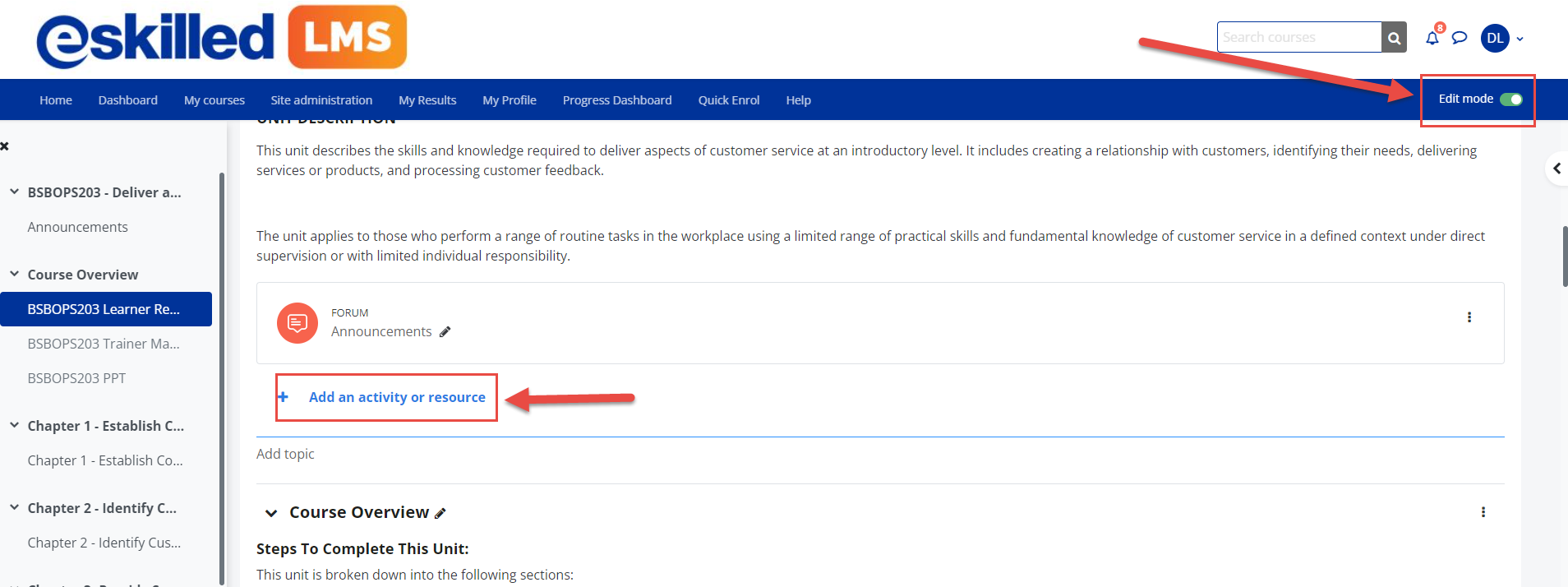
Step 3: To add an activity to your course, turn on the 'Edit Mode' toggle. Click Add an activity or resource.
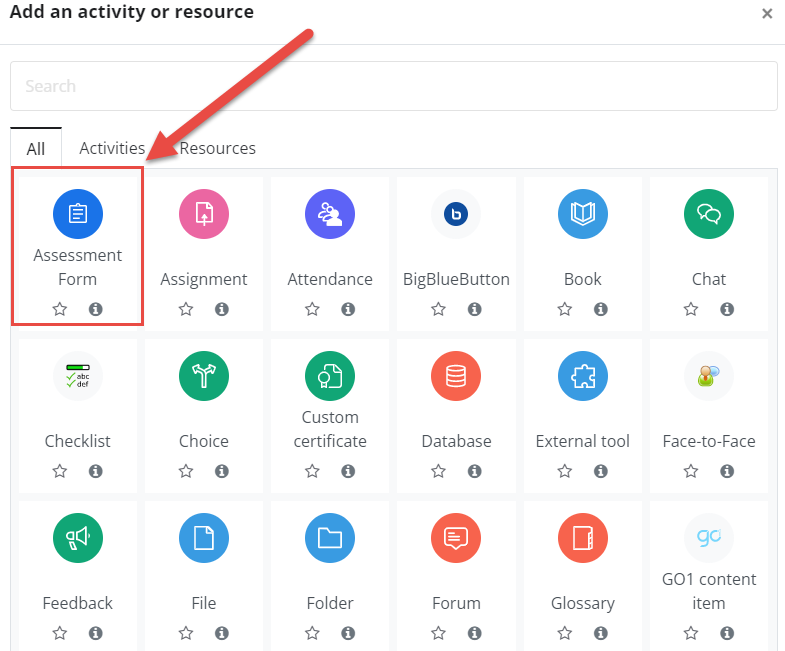
Step 4: Click the 'Assessment Form' from the list of the activities.
Step 5: Fill out the information needed to set-up the Assessment Activity.
General Settings:
Name* | (Mandatory field) enter the name of the Assessment Form activity in the Name text box. |
Description | Enter the relevant description in the "Description" text area that describes the Assessment Form if needed. |
Display description on course page | (checkbox) If enabled, the description of this activity will be shown on the course page |
Timing:
Open the assessment | Tick the enable button if you want to set the date and time for the assessment to open. |
Close the assessment | Tick the enable button if you want to set the date and time for the assessment to close. |
Time limit | If enabled, a countdown timer will be displayed in the navigation block while student is taking the assessment. |
When time expires | There are two options for this setting when time expires: 1. Open attempts are submitted automatically (default setting) 2. Attempts must be submitted before time expires (or they are not counted) |
Grade:
Grade Category | This settings controls the category in which this activity's grades are placed in the gradebook |
Maximum grade is 0.0 | The Assessment Activity automatically counts the maximum grade based on the Task Fields used in the assessment. |
Grade to pass | This setting determines the minimum grade required to pass. The value is used in activity and course completion, and in the gradebook, where pass grades are highlighted in green and fail grades in red. During this set-up, leave Grade to pass blank for the time being. You must return to it once you're done building the form |
Attempts allowed | Options are from 1-10 and Unlimited |
Grading Method | When multiple attempts are allowed, the following methods are available for calculating the final assessment grade:
|
Task Behaviour:
Allow copy and paste for student | If this setting is enabled, students can execute copy and paste during assessment. |
Each attempt builds on the last | If multiple attempts are allowed and this setting is enabled, each new assessment attempt will contain the results of the previous attempt. This allows an assessment to be completed over several attempts. |
Assessor Only Activity | Enable this setting for any activity that does NOT require a student to make a submission and ONLY the Assessor will be completing the Assessment Activity. |

Make sure that you have enabled the Assessor Only Activity
Appearance:
Colour Coded Tabs | Tabs are colour coded to show progress of data entered. |
Show the user's picture | If enabled, a student's name and picture will be shown on-screen during the attempt, and on the review screen, making it easier to check that the student is logged in as themselves in an invigilated (proctored) exam. |
Decimal places in grades | This setting specifies the number of digits shown after the decimal point when displaying grades. It only affects the display of grades, not the grades stored in the database, nor the internal calculations, which are carried out to full accuracy. |
Decimal places in question grades | This setting specifies the number of digits shown after the decimal point when displaying the grades for individual questions. |
Show blocks during assessment attempts | If set to yes, then normal blocks will be shown during assessment attempts. |
Extra restrictions on attempts:
Require password | If a password is specified, a student must enter in order to attempt the assessment. |
Require network address | Assessment access may be restricted to particular subnets on the LAN or Internet by specifying a comma- separated list of partial or full IP address numbers. This can be useful for an invigilated (proctored) assessment, to ensure that only people in a certain location can access the assessment. |
Enforced delay between 1st and 2nd attempts | If enabled, a student must wait for the specified time to elapse before being able to attempt the assessment a second time. |
Enforced delay between later attempts | If enabled, a student must wait for the specified time to elapse before attempting the assessment a third time and any subsequent times |
Browse security | If "Full screen pop-up with some JavaScript security" is selected,
|
Webcam identity validation | If you enable this option, students will not be able to start an attempt until they have ticked a check-box confirming that they are aware of the policy on webcam. For proctoring purposes, select 'must be acknowledge before starting an attempt' |
Common module settings:
Availability | The availability option permits students to view and access assignments and resources, there are two options available:
|
ID number | The ID number can be entered to reference the same ID number from a third-party package especially gradebook. Otherwise, the field may be left blank. |
Force Language | If you force a language in a course, the interface of Moodle in this course will be in this particular language, even if a student has selected a different preferred language in his/her personal profile. |
Group mode | There are three group settings available:
|
Grouping | Not available if no group mode is selected, if separate or visible grouping is enabled, you will then be given an option to Add group/grouping access restrictions. |